
Color legend plain property method
The gizmo shows one mode at a time, arms and squares to move, rings to turn or boxes and squares to scale, and works
along one frame, the world’s axes or the target’s own. Mode and Space choose them, within what
the target offers. Names are colored by what they are: a
property or a method; values and fields keep the
plain color.
Modes
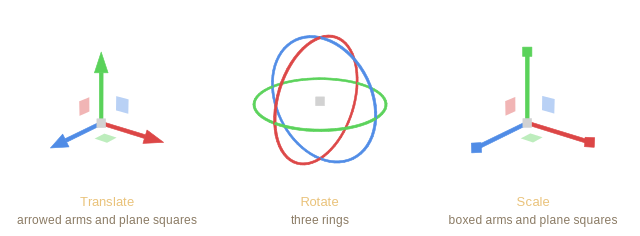
- Translate shows three arrowed arms and three plane squares. Dragging an arm moves the target along its axis; dragging a square moves it across the square’s plane, along both of its axes at once.
- Rotate shows three rings, each square to its axis. Dragging one turns the target about that axis.
- Scale shows three arms tipped with boxes and the same three plane squares, and makes the pivot square a handle.
Dragging an arm scales the target along its axis, a plane square along both of its axes, and the pivot square along
all three together. A target that offers only
ScaleUniformshows the pivot square alone, and one that offers onlyScaleAxesshows the arms and the plane squares, with a pivot square that isn’t a handle.
The pivot square is drawn in every mode, where the target’s WorldPosition is.
The plane squares sit between each pair of arms, from a quarter of an arm’s length out to nearly half along both, and
are named after the two axes they span: XY, XZ and YZ in
GizmoAxis. Each takes the color of the axis it leaves out, so the blue square, between
the red and green arms, moves without touching Z. They are see-through, so they never hide what is under them, and they
lie in their planes rather than facing the camera: a square narrows as its plane turns edge-on. Like the arms, they
follow the frame.
GizmoMode values
| Value | Description |
|---|---|
Translate |
Three arrowed arms, each moving the target along its axis, and three plane squares, each moving it across its plane. The mode of a new gizmo. |
Rotate |
Three rings, each turning the target about its axis. |
Scale |
Three scale arms, each scaling one axis, three plane squares, each scaling two, and the center square, scaling all three. |
Choosing a mode
Set Mode from a key or a button, or step through the modes with
CycleMode, which goes translate, rotate, scale and round again, skipping the modes the target
doesn’t offer:
if (WasPressed(Keys.D1)) gizmo.Mode = GizmoMode.Translate;
if (WasPressed(Keys.D2)) gizmo.Mode = GizmoMode.Rotate;
if (WasPressed(Keys.D3)) gizmo.Mode = GizmoMode.Scale;
if (WasPressed(Keys.Tab)) gizmo.CycleMode(selected);
The gizmo keeps Mode on a mode the target offers. Every Update,
TryBeginDrag and Draw with a target checks it, and moves it to the first
offered mode in translate, rotate, scale order when the target doesn’t offer it. So Scale, left over from a crate,
becomes Translate when a point light is selected, and stays Translate when the crate is selected again. A mode
set that the target doesn’t offer lasts until the next of those calls; a
toolbar can gray such modes out. A target that offers no mode
at all shows no gizmo and leaves Mode as it is.
During a drag, setting Mode and calling CycleMode do nothing: the drag
holds what it captured for its own mode, and another mode would write that to the wrong part of the pose.
TransformGizmo mode members
| Member | Description |
|---|---|
Mode |
Which handles are up, a GizmoMode. Translate for a new gizmo. Kept on a mode the target offers; setting it during a drag does nothing. |
CycleMode(ITransformGizmoTarget target) |
Steps to the next mode the target offers, in translate, rotate, scale order; a lone mode stays. Does nothing for a null target or during a drag. |
Frames
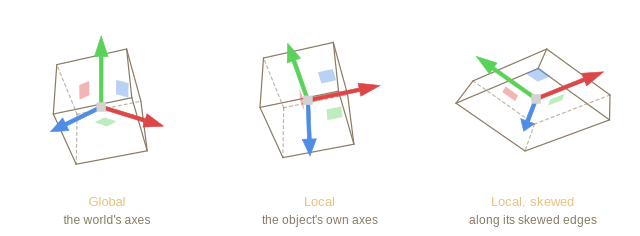
Space is the frame of the move handles and the rings:
Global, the default, works along the world’s axes, whichever way the target faces.Localworks along the target’s own axes, from itsWorldAxes.
ToggleSpace swaps the two. Space is a preference, though, and the target
has the last word. A mode it offers in one frame only stays in that frame: a target with
RotateLocal alone turns about its own axes with Global preferred. Scale is always Local,
see scale is always local. So the toggle only shows once
a mode the target offers in both frames is up.
The gizmo settles the frame inside Update, TryBeginDrag and
Draw, with ResolveSpace, from Mode,
Space and the target’s capabilities, so the calling code never has to. To show the frame in use,
ask ResolveSpace the same question.
During a drag, setting Space and calling ToggleSpace do nothing: the
handles would change frame under a drag that is still running in the old one.
GizmoSpace values
| Value | Description |
|---|---|
Global |
The world’s axes. The frame of a new gizmo. |
Local |
The target’s own axes. Scale always works in it. |
TransformGizmo frame members
| Member | Description |
|---|---|
Space |
The preferred frame of move and rotate, a GizmoSpace. Global for a new gizmo. Setting it during a drag does nothing. |
ToggleSpace() |
Swaps Space between Global and Local. Does nothing during a drag. |
Moving
An arm drag slides the target along the arm’s axis by the pointer’s travel along it. Each frame, the gizmo finds the point of the axis line nearest the pointer’s ray and moves the target by as far as that point has gone since the grab, so the target stays under the pointer, near the camera or far from it.
A square drag moves the target across the square’s plane, the plane through the pivot that holds both of its axes.
Each frame, the gizmo meets the pointer’s ray with that plane and moves the target by as far as the meeting point has
gone since the grab, so the point grabbed on the square stays under the pointer, along both axes at once. Either way,
the new position goes to
WorldPosition.
- End-on and edge-on. An arm that points nearly straight at the camera can’t be grabbed, nor a square turned nearly edge-on: a drag on either would fling the target a long way for a little pointer travel, see hovering.
- Past the horizon. During a square drag the pointer can run out toward the horizon of the square’s plane on screen, where the ray meets the plane ever farther off, or no longer in front of the camera at all. The target keeps its last position until the pointer gives a usable point again. A square grabbed at such a point measures from the first point it gets, so the target doesn’t jump.
Rotating
A rotate drag turns the target about the ring’s axis by the pointer’s angle around it. The gizmo meets the pointer’s ray with the ring’s plane, through the pivot and square to the axis, and measures the angle there, so equal travel round the ring is an equal turn, all the way round.
- A ring seen edge-on gives no angle, and neither does a pointer past the horizon of the ring’s plane on screen, where the ray no longer meets the plane in front of the camera. The target keeps its last rotation until the pointer gives an angle again. A ring grabbed edge-on measures from the first angle it gets, so the target doesn’t jump.
- The axis is held. The axis grabbed is the axis for the whole drag. A turn about a local axis goes on about the ring it started on, even as the target, and its local axes with it, turns under it.
- The turn is composed locally. It goes onto the
LocalRotationthe target had at the grab, in the target’s own frame, and the result is written toLocalRotation. A global ring’s axis is carried into that frame first, so the target turns about the world’s axis whatever its parents do.
Scaling
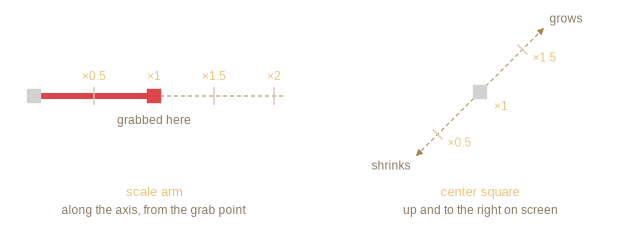
- An arm multiplies its own axis of
LocalScaleby one plus the pointer’s travel along the axis from where it was grabbed, in arm lengths. Dragging a whole arm’s length outward doubles that axis; half an arm back toward the pivot halves it. The arm is the target’s own axis, as scale is always local. - A plane square multiplies both of its axes by one plus the pointer’s travel along the square’s diagonal, the line from the pivot out through the square, midway between its two arms, also from where it was grabbed and in arm lengths. Both axes take the same factor, so they keep their proportion, and the third is left as it is.
- The center square multiplies all three by one plus the pointer’s travel along the screen’s diagonal, up and to the right, in the length of an arm on screen. Up and to the right grows, down and to the left shrinks, and travel across the diagonal counts for nothing. The travel is measured from the grab point rather than from the pivot: the square is only a few pixels across, so a distance from the pivot could hardly shrink anything.
- There is a floor. The factor never goes below 0.01: a drag takes no axis below 1% of the scale it had at the grab, so nothing collapses to nothing or turns inside out. An axis already mirrored stays mirrored.
Each frame works from the scale read at the grab, not from the last frame’s, so the scale never drifts.
Skewed and mirrored objects
- Skewed. Under a parent scaled more along one axis than the others, a turned child’s axes are no longer
perpendicular. The local handles follow them, so the arms and the scale boxes lie along the object’s real edges, and
the plane squares lean with them, as in the third box above. A ring is measured on a plane square to its
own axis, so equal travel is still an equal turn. A square is dragged on the plane that holds both of its axes, which
in such a frame isn’t perpendicular to the third axis. Where a frame has to stand in for an orientation, to carry a world axis into the object’s frame for a
global rotate, it is squared up first with
Orthonormalized: exact with no shear, the closest there is with it. - Mirrored. A negative scale makes the object’s frame left-handed. A turn about one of its own axes then moves it
the opposite way in the world from an unmirrored object, so the gizmo turns the angle around: the object follows the
pointer either way.
IsLeftHanded, read fromWorldAxesat the grab, is how the gizmo knows.