
Color legend plain property method
Draw renders the widget with its own BasicEffect, in a small viewport of its own in the corner, over
everything else. It builds the widget’s quads again each frame from the camera’s view, so there is nothing to keep in
sync and nothing to load. Names are colored by what they are: a property or a
method; values and fields keep the plain color.
Drawing the widget
Call Draw after the scene, with the camera the scene is drawn with:
protected override void Draw(GameTime gameTime)
{
    GraphicsDevice.Clear(Color.Black);

    DrawScene();
    gizmo.Draw(camera); // over the scene, in the top-right corner
    DrawPanels();       // the editor's 2D panels over the widget

    base.Draw(gameTime);
}
It draws into the device’s current render target, in the top-right corner of its current viewport. Of the camera it
reads only the View, so it shows the view as of the camera’s last Update. The highlight
is the one the last UpdateHover found.
OrientationGizmo drawing method
| Method | Description |
|---|---|
Draw(Camera camera) |
Draws the widget in the top-right corner of the current viewport, over what is there, and puts back the viewport and the render states it changed. Throws ArgumentNullException for a null camera, and ObjectDisposedException after Dispose. |
The corner
The widget is a square 110 pixels across, 12 pixels in from the top and the right edges of the device’s current
viewport, as in the picture on the picking page. For its draw call,
Draw sets the device’s viewport to that square and draws with a fixed orthographic projection of its own,
so the widget is the same size in a window of any size and is never stretched by the window’s aspect ratio. Its size
and its place are fixed: the gizmo has no setting for them.
To put the widget in a view’s corner rather than the window’s, set the view’s viewport before drawing, see viewports.
What it draws
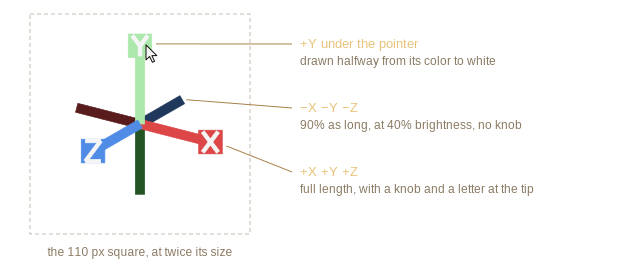
Six arms from the middle of the square, one along each direction of each world axis:
- The positive arms, +X, +Y and +Z, full length, each with a square knob at its tip and its letter on the knob.
- The negative arms, −X, −Y and −Z, 90% as long, at 40% of their axis’s brightness, with no knob. A shorter, darker arm on the far side is how a pair reads as one axis with a direction.
All of it is flat and faces the screen: the arms are ribbons of even width from any angle, the knobs are squares, and the letters lie in the plane of the screen, so they stay upright when the camera rolls. An arm pointing straight at the camera, or straight away from it, has no length on screen and isn’t drawn; the knob and letter of a positive one still are, in the middle.
| Part | Size on screen |
|---|---|
| Positive arm | 42.3 pixels from the middle to the tip, lying across the view |
| Negative arm | 38.1 pixels, 90% of a positive arm |
| Arm | 4.7 pixels wide |
| Knob | 11.8 pixels across |
| Letter | 7.6 pixels wide and 10.2 tall, in strokes 1.9 pixels wide |
The lengths are those of an arm lying across the view. An arm turned toward the camera or away from it is shorter on screen by the cosine of the turn, and only that: the projection is orthographic, so a tip near the camera is drawn no bigger than one far from it, and the arms read as pure directions.
How it turns
The widget turns exactly as the camera does. Its view is the camera’s View with the translation replaced:
the camera’s turn is kept, roll included, and where the camera is in the world is dropped. However the camera flies,
and however far the floating origin has moved, the widget stays in its
corner and only turns.
The widget’s own camera looks at its middle from 4 units away, through an orthographic projection 2.6 units across: the arms are 1 unit long, which leaves room around their tips in every direction.
Render states
Draw sets four states for its draw call and puts the ones it found back after it:
| State | Set to | Because |
|---|---|---|
Viewport |
The widget’s square | The widget is drawn in its own corner, with its own projection, centered in the square. |
DepthStencilState |
None |
The widget is drawn over everything, never hidden by the scene; its own overlaps are sorted instead, below. |
BlendState |
AlphaBlend |
Colors with alpha blend with the scene. |
RasterizerState |
CullNone |
The quads are flat, and are seen from either side. |
The effect draws vertex colors with no lighting and no texture. The gizmo touches no texture, sampler or render target.
Paint order
With depth testing off, the order the quads are painted in decides which covers which. The widget paints far to near: each frame, its quads are sorted by their farthest point and drawn back to front in a single call.
- An arm toward the camera lies over the others, and its knob over theirs.
- A letter sits on its own knob. It is nudged 0.02 units toward the camera, enough to be painted after its knob.
- An arm in front of a letter hides it, as it hides the knob: the letter of a tip at the back of the widget is covered by the arms in front of it.
The sort is an insertion sort over 17 quads at most, six arms, three knobs and the eight strokes of the letters, and it
allocates nothing. BorrowedTorch.TransformGizmo
has the same sort public, as PainterOrderDepthSort, for overlays of your own.
Colors
The arms, the knobs and the letters take four colors. Set them at any time, or with the gizmo:
gizmo = new OrientationGizmo(GraphicsDevice)
{
    AxisXColor = new Color(255, 96, 96),
    AxisLetterColor = Color.Black
};
A negative arm takes its axis’s color at 40% of its red, green and blue, and is opaque whatever the color’s alpha. The
arm under the pointer is drawn halfway from its color to white, its knob too; the letters keep their color. For
translucent arms, scale the whole color rather than only its alpha: AlphaBlend expects colors premultiplied by their
alpha.
gizmo.AxisZColor = new Color(80, 140, 230) * 0.6f; // a 60% opaque +Z arm and knob
The highlight goes halfway to an opaque white, so a translucent arm also grows more opaque under the pointer.
OrientationGizmo color properties
| Property | Type | Description |
|---|---|---|
AxisXColor |
Color |
The +X arm and knob, and the −X arm at 40% brightness. (220, 70, 70), a red, by default. |
AxisYColor |
Color |
The +Y arm and knob, and the −Y arm at 40% brightness. (90, 210, 90), a green, by default. |
AxisZColor |
Color |
The +Z arm and knob, and the −Z arm at 40% brightness. (80, 140, 230), a blue, by default. |
AxisLetterColor |
Color |
The letters X, Y and Z on the knobs. (245, 245, 245), an off-white, by default. |
The axis colors are those of the transform gizmo’s handles, so the two read as one set of axes in an editor.
Cost
Each frame, Draw builds at most 17 quads, 102 vertices, into arrays the gizmo made when it was created,
sorts them and sends them in one draw call. Nothing is allocated after the constructor, so the widget leaves no
garbage for the collector.