
Color legend plain property method
The widget and the scene share the pointer. The widget answers two questions about it: which tip the pointer is on, for the highlight, and which axis a click picked. What to do with the axis is the game’s to decide; most often it turns the camera to look along it. Names are colored by what they are: a property or a method; values and fields keep the plain color.
The order of a frame
- Update the camera, so the widget turns with this frame’s view.
- Update the hover with the pointer:
UpdateHoverfinds the tip under it, forDrawto light up. - On a press, try the widget first.
TryPickAxisreturnstrueand the axis when the click is on a tip. Onfalse, the click is the scene’s: select, deselect, or whatever the scene does with it. - Draw the scene, then the widget, over it.
var mouse = Mouse.GetState();
var pressed = mouse.LeftButton == ButtonState.Pressed && previousMouse.LeftButton == ButtonState.Released;

camera.Update(elapsedSeconds);
gizmo.UpdateHover(camera, mouse.Position);

if (pressed)
{
    if (gizmo.TryPickAxis(camera, mouse.Position, out var axis))
        free.SnapTo(-axis);
    else
        SelectUnder(mouse.Position); // the scene's click
}
Both methods take the camera the scene is drawn with and the pointer in window pixels, as the mouse gives it. They
read the camera’s View, which changes only in the camera’s Update: with the camera updated first, the
hover, the pick and the picture all come from the same view.
OrientationGizmo pointer methods
| Method | Description |
|---|---|
UpdateHover(Camera camera, Point mousePosition) |
Finds the tip under the pointer, by the same rules as a click, for Draw to light up its arm. Call it once a frame, before Draw, wherever the pointer is: a pointer on no tip clears the highlight. Throws ArgumentNullException for a null camera. |
TryPickAxis(Camera camera, Point mousePosition, out Vector3 axis) |
Returns true and the axis of the tip under the pointer, as a signed unit vector, the nearer tip when two are close enough. Returns false and Vector3.Zero when the pointer is outside the widget’s square or near no tip. Changes nothing. Throws ArgumentNullException for a null camera. |
Hovering
UpdateHover finds the tip under the pointer by the same rules as a click, below, and
Draw draws that tip’s arm halfway from its color to white, with its knob for a positive axis. Only that
one arm lights up: the pointer on the X tip lights +X, not −X. The letter keeps its color.
Call it every frame, and pass the pointer even when it is far from the widget. The highlight stays as the last call left it, so a call skipped while the pointer is elsewhere leaves a tip lit up.
The gizmo has no property to read the hover from. TryPickAxis changes nothing and costs six projected
points, so call it for a cursor, or for a tooltip that names the axis:
var onTip = gizmo.TryPickAxis(camera, mouse.Position, out var axis);

Mouse.SetCursor(onTip ? MouseCursor.Hand : MouseCursor.Arrow);
Picking an axis
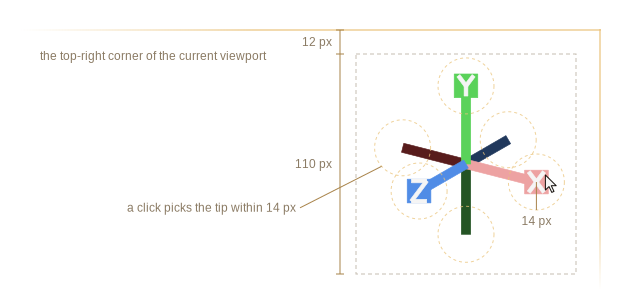
TryPickAxis picks a tip, not an arm. The pointer is on a tip when it is:
- inside the widget’s square, the 110-pixel square in the corner of the viewport, and
- within 14 pixels of the tip: of the center of the knob of a positive axis, or of the bare end of a negative arm. Those ends are pickable too, for the view from the other side.
Where two tips are both that close, the one nearer the camera wins. In a view along an axis, both ends of it sit in the middle of the widget, one in front of the other, and a click there picks the end pointing at you.
The axis comes back as a signed unit vector in the world: Vector3.UnitX for the X tip, -Vector3.UnitZ for the
end of −Z. It is exact, so it can be compared with ==:
var name = axis == Vector3.UnitY ? "Top" : axis == -Vector3.UnitY ? "Bottom" : "Side";
Snapping the view
The axis is the direction of the tip in the world. To look along it the way the widget shows it, with the clicked axis
pointing at you, turn the camera to face the opposite way. A FreeCameraController does it smoothly:
if (pressed && gizmo.TryPickAxis(camera, mouse.Position, out var axis))
    free.SnapTo(-axis);
After the turn, the clicked axis points straight out of the screen. Its arm has no length to show, and its knob and letter sit in the middle of the widget, over the other arms.
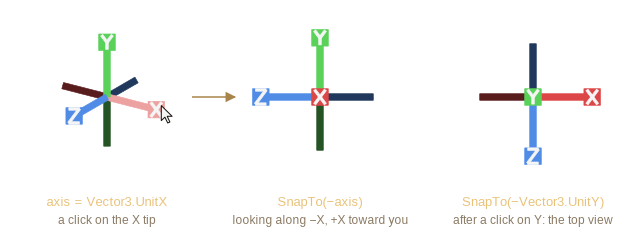
| Tip clicked | axis |
Snapped to | The view |
|---|---|---|---|
| X | Vector3.UnitX |
-Vector3.UnitX |
From the +X side: +Z to the left |
| Y | Vector3.UnitY |
-Vector3.UnitY |
From above, the top view: −Z at the top of the screen |
| Z | Vector3.UnitZ |
-Vector3.UnitZ |
From the +Z side, the front view: +X to the right, as a new camera looks |
| −X | -Vector3.UnitX |
Vector3.UnitX |
From the −X side: +Z to the right |
| −Y | -Vector3.UnitY |
Vector3.UnitY |
From below, the bottom view |
| −Z | -Vector3.UnitZ |
Vector3.UnitZ |
From the −Z side, the back view: +X to the left |
SnapTo levels the roll against world +Y, and slows down as it closes in: it covers 95% of the turn in
AxisSnapConvergenceSec, 0.18 seconds by default. Any Look or Roll input cancels it and takes over, see
snapping to an axis. The widget turns along with the view, frame by
frame.
Looking from the other side
A click on the tip in the middle, the axis already pointing at you, picks that axis again, and SnapTo(-axis) turns
nowhere. To turn the view round instead, as a second click does in many editors, look whether the camera faces that
way already:
if (pressed && gizmo.TryPickAxis(camera, mouse.Position, out var axis))
{
    // within about 2.5° of looking along the axis
    var lookingAlong = Vector3.Dot(camera.Forward, -axis) > 0.999f;

    free.SnapTo(lookingAlong ? axis : -axis);
}
Forward is a unit vector, so the dot product is the cosine of the angle between the view and the axis.
Cameras without the free controller
SnapTo belongs to the free camera. For a camera with no controller, the axis gives the side to put it
on: move it there, at its distance from what it looks at, and look back.
// an instant turn round the point the camera looks at
camera.Position = pivot + axis * distance;
camera.LookAt(pivot, Vector3.Up);
LookAt gives the top and bottom views a valid roll too: with the pivot straight below, the top of the
view points toward −Z, as in the top view above. A controller of your own, an orbit camera for one, can take the axis
the same way, see writing a controller.
Sharing the pointer with the scene
The widget is drawn over the scene, so a click on it must not reach the scene as well: try the widget first, and give the scene only the clicks the widget doesn’t take, as in the order of a frame.
The widget takes only clicks on its tips. Its square is mostly empty, with the scene showing through, and a click in it that misses every tip is the scene’s, to select what is under it there.
Viewports
The gizmo places its square in the top-right corner of the graphics device’s current viewport, and picks against the
square where it would draw it. The pointer stays in window pixels: the viewport’s place in the window is taken into
account. For a split screen, or a scene view inside a larger editor window, set the device’s viewport to the view’s
before UpdateHover and TryPickAxis, as for Draw:
GraphicsDevice.Viewport = sceneView; // the editor's 3D view

gizmo.UpdateHover(camera, mouse.Position);
With the window’s viewport set while picking, the widget would pick in the window’s corner and draw in the view’s, and a click on what is drawn would miss. A scene view in an editor sets the view’s viewport around all three calls.
Two views, two gizmos
The hover is kept in the gizmo from one UpdateHover to the next, and every Draw shows it. A
gizmo shared by two views would show the hover of the view it was last updated for in both, or in neither. Give each
view a gizmo of its own, with its own camera: each holds a BasicEffect and a few kilobytes of vertices.