
Color legend plain property method
Displays.List gives the displays on the desktop, each as a Display: which one it is, where it is, how it is
set, and every mode it can be set to, which the resolutions and modes page covers. Names
are colored by what they are: a property or a method;
values and fields keep the plain color.
The list
IReadOnlyList<Display> displays = Displays.List();
The primary display comes first, then the others from left to right, and top to bottom where two are one above the other. Displays set to show the same picture (Settings’ “Duplicate these displays”) are one display, as they are one place on the desktop to Windows.
Each call reads the displays again and keeps nothing, so a display plugged in, moved in Settings or set to another resolution shows in the next list. The list is empty where nothing is on a desktop: a service, or a machine with no display attached. A game whose window is open always has its display in it.
Displays methods
| Method | Description |
|---|---|
List() |
The displays on the desktop, the primary one first, the others from left to right and top to bottom. Duplicated displays are one. Empty where nothing is on a desktop. |
Telling displays apart
DeviceName is the name Windows gives a display’s place on the desktop, \\.\DISPLAY1, \\.\DISPLAY2. It is the
name the other parts of a game know the display by: MonoGame’s GraphicsAdapter.DeviceName and Windows Forms’
Screen.DeviceName give the same text. A game saves the player’s display by it, and finds it again in the next list:
var display = Displays.List().FirstOrDefault(candidate => candidate.DeviceName == settings.Display)
              ?? Displays.List()[0];   // gone: the primary display
The name stays while the displays stay plugged in as they are; a display plugged into another port, or a new one,
can take another number. The number is no order: \\.\DISPLAY2 can be left of \\.\DISPLAY1.
Name is the name to show the player: the monitor’s own, from what it tells the machine (DELL U2720Q,
Lenovo DisplayHDR). A monitor that tells no name, as many panels built into laptops don’t, has Windows’ name for its
driver, often Generic PnP Monitor, and a display Windows can tell nothing about has its DeviceName. Two
monitors of the same model have the same name: number them, as Settings does.
| Property | What it tells |
|---|---|
IsPrimary |
The main display (Settings’ “Make this my main display”), the one whose top left corner is 0, 0 |
IsBuiltIn |
A panel built into the machine, a laptop’s or a tablet’s, rather than a monitor plugged in |
VideoCardLuid |
The Luid of the video card the display is driven by; 0 where Windows doesn’t say |
The card a display is on isn’t always the card the game draws with. On a laptop with two cards, the built-in panel is often driven by the card in the processor while the game draws on the card of its own, which hands each picture over:
var cards = VideoCards.List();
var shownOn = cards.FirstOrDefault(card => card.Luid == display.VideoCardLuid);
Display identity properties
| Property | Type | Description |
|---|---|---|
DeviceName |
string |
The name of the display’s place on the desktop, \\.\DISPLAY1. |
Name |
string |
The monitor’s own name, Windows’ name for its driver where it tells none, or DeviceName. |
IsPrimary |
bool |
The main display. |
IsBuiltIn |
bool |
A panel built into the machine. |
VideoCardLuid |
long |
The LUID of the video card the display is driven by, 0 where Windows doesn’t say. |
Where a display is
All the displays make one desktop. Bounds is where a display is on it and how big, as a
PixelRectangle; WorkArea is the part the taskbar and other bars docked to its edges leave, where a window
fits whole:
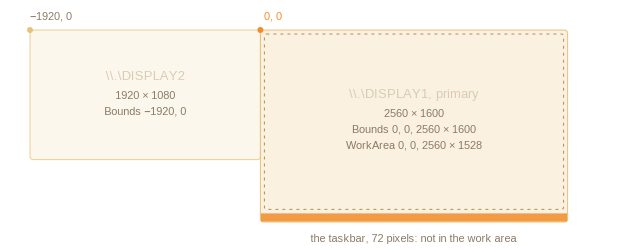
The desktop’s origin is the primary display’s top left corner: a display left of it or above it has negative
coordinates. PixelRectangle has the Right and Bottom just past it, and Contains for a point or another
rectangle, to find the display a window or the mouse is on:
var underMouse = Displays.List().FirstOrDefault(display => display.Bounds.Contains(mouseX, mouseY));
The coordinates are the displays’ own pixels, read as a per-monitor DPI aware program reads them, whatever the game’s own awareness: a 4K display at 150 % is 3840 wide, not the 2560 Windows tells a program that isn’t aware. A game that places its window by them should be per-monitor DPI aware too, declared in its app manifest, or Windows scales the window and its position.
Display place properties
| Property | Type | Description |
|---|---|---|
Bounds |
PixelRectangle |
Where the display is on the desktop, and its size. |
WorkArea |
PixelRectangle |
Bounds without the taskbar and the bars docked to the display’s edges. |
PixelRectangle members
| Member | Type | Description |
|---|---|---|
PixelRectangle(int X, int Y, int Width, int Height) |
A rectangle of the desktop. | |
X, Y |
int |
The left column and the top row. |
Width, Height |
int |
How many columns and rows it spans. |
Right, Bottom |
int |
Read-only. The column just right of it and the row just below it. |
Contains(int x, int y) |
bool |
Whether a pixel is in the rectangle. |
Contains(PixelRectangle other) |
bool |
Whether another rectangle lies wholly in it. |
DPI and scale
Dpi is the DPI Windows scales the display’s windows for, and Scale the same as Settings’ scale (System,
Display, Scale), a factor:
| Settings’ scale | Dpi |
Scale |
|---|---|---|
| 100 % | 96 | 1.0 |
| 125 % | 120 | 1.25 |
| 150 % | 144 | 1.5 |
| 200 % | 192 | 2.0 |
A game draws its world at the display’s pixels either way; the scale is for its UI, which the player has asked to be that much bigger on that display. A UI laid out for 1920 × 1080 at 100 % fits a 3840 × 2160 display at 200 % at twice its size:
ui.Scale = display.Scale;
Display scale properties
| Property | Type | Description |
|---|---|---|
Dpi |
int |
The DPI Windows scales the display’s windows for: 96 at 100 %. |
Scale |
float |
Read-only. Settings’ scale of the display as a factor: Dpi / 96. |
How a display is set
| Property | What it is |
|---|---|
CurrentMode |
The mode the display is set to: its size, its refresh rate in whole hertz and its color depth |
RefreshRate |
How many times a second it is drawn now, exactly: 59.94 where the mode says 59, 165.004 where it says 165 |
Orientation |
How it is turned, a DisplayOrientation |
RefreshRate is the rate Windows sends the monitor, from its display configuration, as a fraction worked out:
the one to time a game to. A game with a fixed time step can run its updates at the display’s rate:
TargetElapsedTime = TimeSpan.FromSeconds(1.0 / display.RefreshRate);
Where Windows doesn’t tell it, RefreshRate is the current mode’s whole number of hertz.
A display turned to portrait has its size as turned: a 1920 × 1080 monitor stood on its side has Bounds 1080 wide
and 1920 high, and a current mode of 1080 × 1920.
DisplayOrientation values
| Value | Number | Settings says |
|---|---|---|
Landscape |
0 | Landscape: as the display stands |
Portrait |
1 | Portrait: turned a quarter |
LandscapeFlipped |
2 | Landscape (flipped): upside down |
PortraitFlipped |
3 | Portrait (flipped): turned a quarter the other way |
Display setting properties
| Property | Type | Description |
|---|---|---|
CurrentMode |
DisplayMode |
The mode the display is set to. |
RefreshRate |
double |
How many times a second the display is drawn now, exactly where Windows can tell, in hertz. |
Orientation |
DisplayOrientation |
How the display is turned. |