
Color legend plain property method event
This page follows the sound from the emitters to the speakers: how the emitters are mixed, the shared reverb, the master volume, and the device the mix plays on. Names are colored by what they are: a plain property, a method or an event.
The signal path
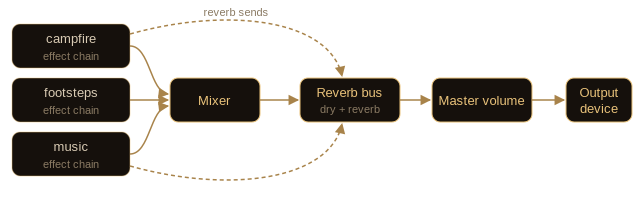
Every emitter that holds a clip runs it through its effect chain into the mixer, which adds them all up. Reverb effects in the chains also send part of their sound to the reverb bus. The bus blends the mixer’s sum with its reverb, the master volume scales the result, and the output device plays it. Everything runs in 32-bit float stereo at 48 kHz, with about 30 ms between the mix and the speakers.
The mix doesn’t limit or compress: many loud emitters together can go past full scale and clip at the device. Keep their levels and the master volume where the loudest moments stay clean.
Master volume
MasterVolume scales the whole mix, from 0 to 1. It is the place for a game’s volume setting:
audio.MasterVolume = settings.Volume; // 0 to 1
The constructor’s second argument sets it from the start. For the volume of one sound, use a volume effect.
The reverb bus
The reverb bus is one reverb shared by every emitter: a sound sends some of itself into it with a reverb effect, and the bus makes the tail of the room they are all in. One reverb for the whole scene is cheap, and puts every sound in the same space.
// the room
audio.ReverbBusRoomSize = 2.5f; // a hall: the tail takes 2.5 s to fade by 60 dB
audio.ReverbBusCutoffHz = 4000; // a dark tail; higher is brighter
audio.ReverbBusWet = 0.3f;

// a sound in it
emitter.TryAddAudioEffect(AudioEffectTypes.Reverb, out var effect);
((ReverbAudioEffect)effect).ReverbSend = 0.5f;
The three settings of the room:
ReverbBusRoomSizeis the reverb time: how many seconds the tail takes to fade by 60 dB, from 0.05 to 6. About 0.3 for a small room, 1 to 2 for a large one, 3 and up for a cathedral or a cave.ReverbBusCutoffHzis how bright the tail is, from 20 to 20 000 Hz. Soft rooms, with carpets and curtains, have dark tails; bare stone has bright ones.ReverbBusWetis how much of the final mix is reverb, from 0 to 1. The rest is the mixer’s dry sum, so raising it also lowers every sound’s direct level, whether it sends to the bus or not. 0 by default: no reverb at all.
Set all three when the scene starts. Until then, the room size and the cutoff read 0. When nothing is sent and the tail has died out, the bus stops working until a sound sends again, so a quiet scene costs nothing.
A reverb effect splits its sound: ReverbSend goes to the bus and the rest goes on down the chain. A send of 0.3
leaves 70 % of the sound as it was. Where the reverb effect sits in the chain matters, see
the order of effects.
ReverbAudioEffect properties
| Property | Type | Description |
|---|---|---|
ReverbSend |
float |
How much of the sound goes to the reverb bus, from 0 to 1. The rest goes on down the chain. 0 by default. |
AudioManager mix properties
| Property | Type | Description |
|---|---|---|
MasterVolume |
float |
The gain of the whole mix, from 0 to 1. Set by the constructor, 1 by default. |
ReverbBusRoomSize |
float |
The reverb time of the bus: seconds for the tail to fade by 60 dB, from 0.05 to 6. Reads 0 until set. |
ReverbBusCutoffHz |
float |
How bright the reverb tail is, from 20 to 20 000 Hz. Reads 0 until set. |
ReverbBusWet |
float |
How much of the final mix is reverb, from 0 to 1; the rest is the dry mix. 0 by default. |
MmDeviceName |
string |
Read-only. The name of the output device, as Windows shows it. null while there is none. |
The output device
The manager plays on the default output device of Windows, in shared mode, so other programs keep playing beside the game. It asks Windows for the default device for games first, then for media, then for communications, and takes the first that answers.
It also follows the device. When the default device changes, or the one in use is unplugged, disabled or fails, the
manager picks the default device again in the next Update: it closes the old output, waits about 100 ms for Windows
to settle, and opens the new one. The emitters go on where they were. OnMmDeviceChanged is raised when that is done,
whether a device was found or not:
audio.OnMmDeviceChanged += () =>
{
    // on a thread-pool thread: hand the news to the game thread
    _deviceMessage = audio.IsInitialized
        ? $"Playing on {audio.MmDeviceName}"
        : "No audio device";
};
Without a device, IsInitialized is false and nothing pulls the mix: playing emitters stay where they are until a
device comes back.
AudioManager events
| Event | Handler | Raised when |
|---|---|---|
OnMmDeviceChanged |
() |
The manager has picked the output device again after a change, whether or not it found one. Raised on a thread-pool thread, or through the synchronization context of the thread that called Update when it has one, as in a WinForms or WPF tool. |
MmNotificationClient
The manager hears about device changes through an MmNotificationClient, which forwards the Windows notifications to
three callbacks. It is public for tools that want the same notifications; a game doesn’t need it.
DeviceState, DataFlow, Role, PropertyKey and MMDeviceEnumerator are NAudio types, in NAudio.CoreAudioApi.
Threading
Two threads share the work:
- The game thread creates and controls everything: emitters, clips, effects and their wiring, the listener, and
Update. Call one emitter from one thread at a time. The list of emitters itself is safe to use from several threads, so looking an emitter up or adding one from a loading thread is fine. - The audio thread belongs to the output device. It reads the clips, runs the chains and the mix, and sends the result to the device.
A setting changed on the game thread reaches the audio thread at the start of its next block, without locks: an effect reads each of its settings once per block, so a value never changes halfway through one. Rewiring a chain waits for the block in progress, so the audio thread never sees a half-connected chain. In steady play the audio thread doesn’t allocate memory, so the garbage collector doesn’t interrupt it.
Events come on these threads:
| Event | Thread |
|---|---|
IAudioEmitter.OnStateChanged |
The game thread, from Update; or the thread that rewires the chain. |
IAudioEmitter.OnCurrentAudioChanged |
The thread that calls Play, Stop or a clip method; from Update for a new loop. |
AudioManager.OnMmDeviceChanged |
A thread-pool thread, or the synchronization context of the thread that called Update. |